
MaptiveIQ - How to Use the Geographic Boundary Tool
Using the Boundary Tool in Maptive can help you segment information on your map in order to quickly identify trends in your data. This tutorial will provide you with everything you need to know when it comes to using the Boundary Tool.
Jump to Topic
- Open the Boundary Tool
- Add Boundary Outlines or Set Colors Manually
- Color Boundaries based on Numeric Ranges (Sales, Employee Count, etc)
- Display Territories based on your Spreadsheet data
- Color Boundaries based on the Row/Marker density (Customer Count)
- Color Boundaries based on Demographic Census Data
- Fill Settings - Change Fill Colors and Ranges
- Boundary Settings - Change how Boundaries look and act
- Manage Multiple boundary fills
Related Pages
- Territory Tool - Create Territories without showing boundary lines
- Convert Boundaries into Territories
- Customize Metrics in right side panel
- Manually color boundaries
Open the Boundary Tool
Step 1: Open Map Tools.
Step 2: Open the Boundary Tool.

Add a Boundary Set to the map
Step 1: Open the Boundary Tool
Step 2: Select the Boundary Set you want to add. "US States" in the example
Step 3: Select a fill type. This will be used to color in each of your boundaries.
Steps for each option are described below
- No Fill / Manual Fill
- My Numeric Data
- My Group / Territory Data
- Marker Count / Location Density
- Demographic Census Data

Option 1: No Fill / Manual Fill
This will place just the outlines of the boundaries on the map. If you had manually colored in the same boundary set on this map before it may also load those territories, depending on if you deleted them or just removed the boundary group.
Use this option if
- You just want to see the outlines of the boundaries
- You want to create territories by manually selecting boundaries
- You want to see aggregated data when you click on a boundary
Additional Steps
Step 1: Click Load Boundaries
For steps on how to then manually color in the boundaries click here

Option 2: My Numerical Data
This will color the boundaries based on your numeric spreadsheet data.
Use this option if
- You want to see patterns in your numeric data
- You need to create territories based on something like total sales
- You want to see the exact total of a field for each boundary
Additional Steps
Step 1: Select Function. You can choose between Sum, Average, Max Value, and Min Value.
Step 2: Select Fill Data. Choose a column from your spreadsheet data that contains numeric information
Step 3: Click Load Boundaries

The boundaries will then get added to the map and will be colored based on the function and column you choose. A key (A) will get added showing you the numeric ranges that were automatically calculated to distribute the boundaries evenly across the different colors. The Boundaries themselves will display the boundary name and the total value (B). You can customize the key and what shows in the boundaries using the action (C). The actions will be described later in the tutorial
Option 3: My Group /Territory Data
This will color the boundaries based on categories in your data like sales person, territory, or operating group. Whichever category has the most markers in a boundary will be displayed in that boundary.
Use this option if
- You want display territories from your data
- You want to see the most common category in each boundary
Additional Steps
Step 1: Select Fill Data. Choose a column from your spreadsheet data that contains your categories or territory names
Step 2: Click Load Boundaries

The boundaries will then get added to the map and will be colored based whichever unique value has the most markers in a boundary. A key (A) will get added showing every unique value that is assigned to at least one boundary. The Boundaries themselves will display the boundary name and the unique value (B). When you click on a boundary some metrics will automatically be included (C). they can be customized by clicking (D)
Option 4: Marker Count / Location Density
This is similar to the Numeric data but basically counts each marker as one to give you a count markers/rows that are in each boundary.
Use this option if
- You want to see your customer density
Additional Steps
Step 1: Click Load Boundaries
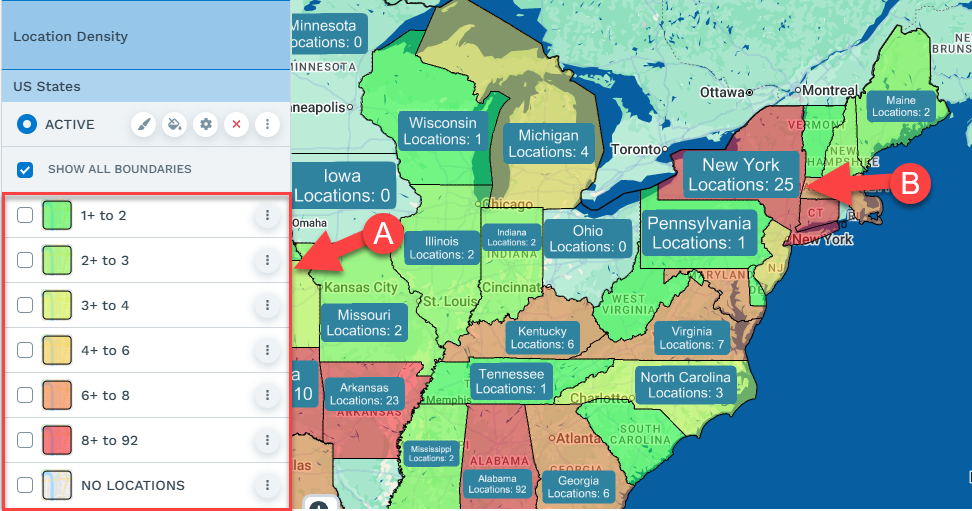
The boundaries will then get added to the map and will be colored based on the number of locations. A key (A) will get added showing you the marker count range for each color. The Boundaries themselves will display the boundary name and the total count for the boundary (B).
Option 5: Demographic Census Data
This will color the boundaries based on your numeric data from the Census. This Option only currently exists for boundaries in the US and Canada. Though if you are able to get data for your country you could always My Numerical Data option to visualize that data
Use this option if
- You want to see patterns in demographic data
- You want to where a certain subset of the population are densest
Additional Steps
Step 1: Select Demographic Group: This is the category of data you are interested in
Step 2: Select Fill Data. This is the specific metric you want to map
Step 3: Click Load Boundaries

The boundaries will then get added to the map and will be colored based on the metric you selected. A key (A) will get added showing you the numeric ranges of the metric. In this case Total US Population. The Boundaries themselves will display the boundary name and the total value for the boundary. You can customize the key and what shows in the boundaries using the action (C). These actions will be described later in the tutorial
Fill Settings - Control the Color of the boundaries
Open Fill Settings
Step 1: Click the Fill Settings icon. This will open a sub menu.
Step 2: Click Customize Fills in the submenu. This will open a new modal.

Color Options in Fill Settings
There are two versions of Fill Settings. One (A) displays for group/territory data, and another (B) displays for all other numeric based fills. For numeric fills there is a default color progression (C) which is used to calculate the individual colors of the numeric ranges. You can change these colors to affect the spectrum of the colors calculated below. You can also change how many ranges your numeric ranges will be separated into (D) and how the numeric ranges will be calculated (E). By default that are calculated with Value Ranges which will try to select the ranges so that an equal number of boundaries fall into each range, this usually creates the best looking maps. The other option Percentage Ranges will split the ranges equally based on the high and low value. This can mean that some ranges might not have any data in them at all
You can also change the color of each entry individually. You can change the Opacity (F), where 0 is invisible, and 100 means you can't see the map behind it. You can also change the Color (G) by clicking on the color icon to select a new color or enter in an HTML color code

Boundary Settings
Boundary settings give you a number of options for how your boundaries will look and act as you interact with the map.
How to open boundary settings
Scroll down to the boundary set you want to change the settings for and click on the boundary settings icon (1).

Boundary Settings Popup - Boundary Formatting
When you open the boundary settings popup it will start on Boundary Formatting this is where you can control how the boundaries appear, how you can interact with them on the map, and what the labels will include. It will also show you the name of the boundary set you are currently looking at (A) and a preview of what the border and label will look like (B).
Boundary Settings - Boundary Options
Option C: Line Width - This allow you to set the thickness of the boundary line. You can set this to 0 is you don't want to see the edges of the boundaries
Option D: Line Color - This allow you to set the color of the boundary line.
Option E: Ignore Filters - When boundaries are colored base on your data they will normally change based on filtering which markers display on the map. If you want to boundary color to stay constant regardless of what search or filter you turn have turn this option on.
Option F: Combine Groups - This allows the individual boundaries that all have the same group to act like a single boundary. they will all get highlighted when you hover over one, and the data in the right side menu will reflect the data from all the boundaries in that group
Option G: Hide Areas W/O data - If you have no data for a given boundary it will be hidden.
Option H: Disable Boundary Hover and Click- This turns off the hover and click effects for the boundary set.

Boundary Settings: Label Customization
The lower section of the popup (I) controls the information in the label.
Option J: Include Name - This includes the boundary name as part of the label
Option K: Include Value - This includes the metric that the boundaries are currently colored by. In the image above it is Total Population: 42
Option L: Include Legend - This will toggle where the metric name is displayed Total Population
Option M: Fill Value - Select this option to use the value of the current fill 42
Option N: Custom Value - This lets you select a different metric to display in the label. For instance you might select Sales then instead of Total Population: 42 you would see Sales: 2540.13. However the Fill data would still be based on population.
Option O: Background Color - This allows you to set the color of the label box.
Option P: Font Color - This allows you to set the color of the text in the box.
Boundary Settings Popup - Sync Data
The Sync Data tab allows you to set how the boundaries get connected to your data. By default they are set to Geometry which means the system will check which boundary the marker actually falls into. The other option in Data with this option you choose a column(s) in your data and it will connect to the boundaries based on a text match with your data. For instance if you have State Boundaries on your map and a row has California in the state column the system will know that marker is in California. The Data option is best to use when mapping boundaries that might not geocode under normal circumstances for instance census track numbers, or if you don't have complete address data.

Managing Multiple Fills - Color Boundaries by Multiple Metrics
Adding additional fills
There are 2 ways to add an addition layer/fill to a boundary.
Option 1: Simply add it the same way you added the first one using the steps above. You just need to select the same boundary set and choose a different fill and the new fill will become active.
Option 2: Add it from the boundary set you already added
Step 1: Click the Fill Settings icon. This will open a sub menu.
Step 2: Click Add More Fills in the submenu.
Step 3: This will bring up a popup which will have the same dropdowns that are in the steps above. Except you will not need to choose which boundary set you want to add the fill to.

Switching between boundary fills
You can easily add multiple fills to a boundary set. However only one of them will display at a time. As soon as you add a second fill you will see a new UI element appear (A). This will indicate which is the active fill by the number appearing in the Boundary tool (B) and there being a circle around the number in the quick reference menu (C). To change the active fill click on (D) if doing it from the tool menu, then click on the number you want to change to in either the Tool or Menu (E)

Removing a fill layer from the map
You can remove a specific fill layer from the map without removing the whole boundary set.
Step 1: Click the Fill Settings icon. This will open a sub menu.
Step 2: Click Customize Fills in the submenu. This will open a new modal.
Step 3: Select the fill layer you want to remove.
Step 4: Click the red garbage can icon to remove that fill layer
