
MaptiveIQ - Boundary Isolation Tool
The Boundary Isolation tool (cutting tool) allows you to display just the part of a map that falls within one boundary or territory. This lets you hide parts of the map you may not want a user to see, or that you want to focus on when you are taking an image.
Isolating a boundary
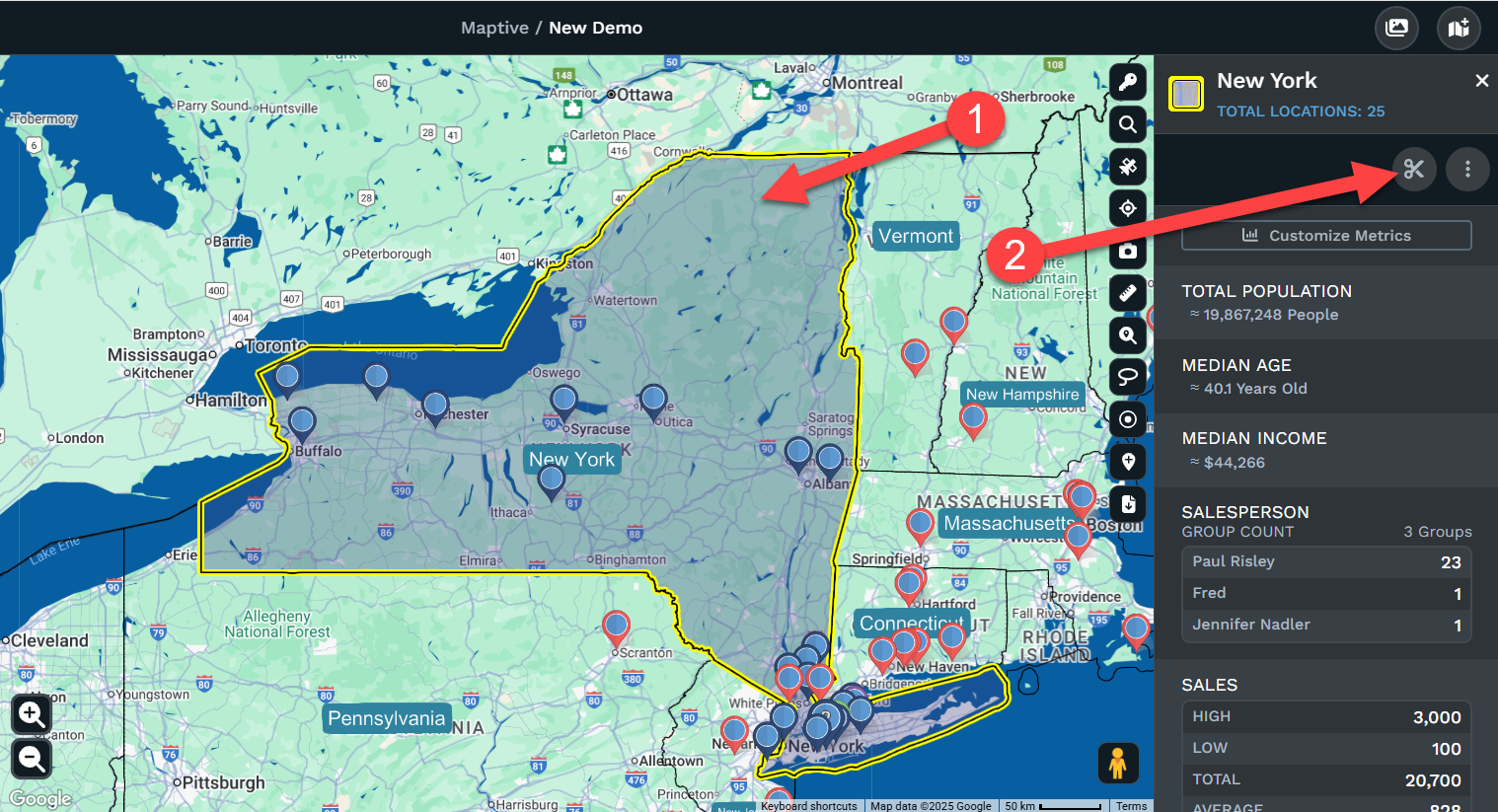
Step 1: Click on any boundary or territory.
Step 2: Click the Isolate Boundary Button in the right side menu
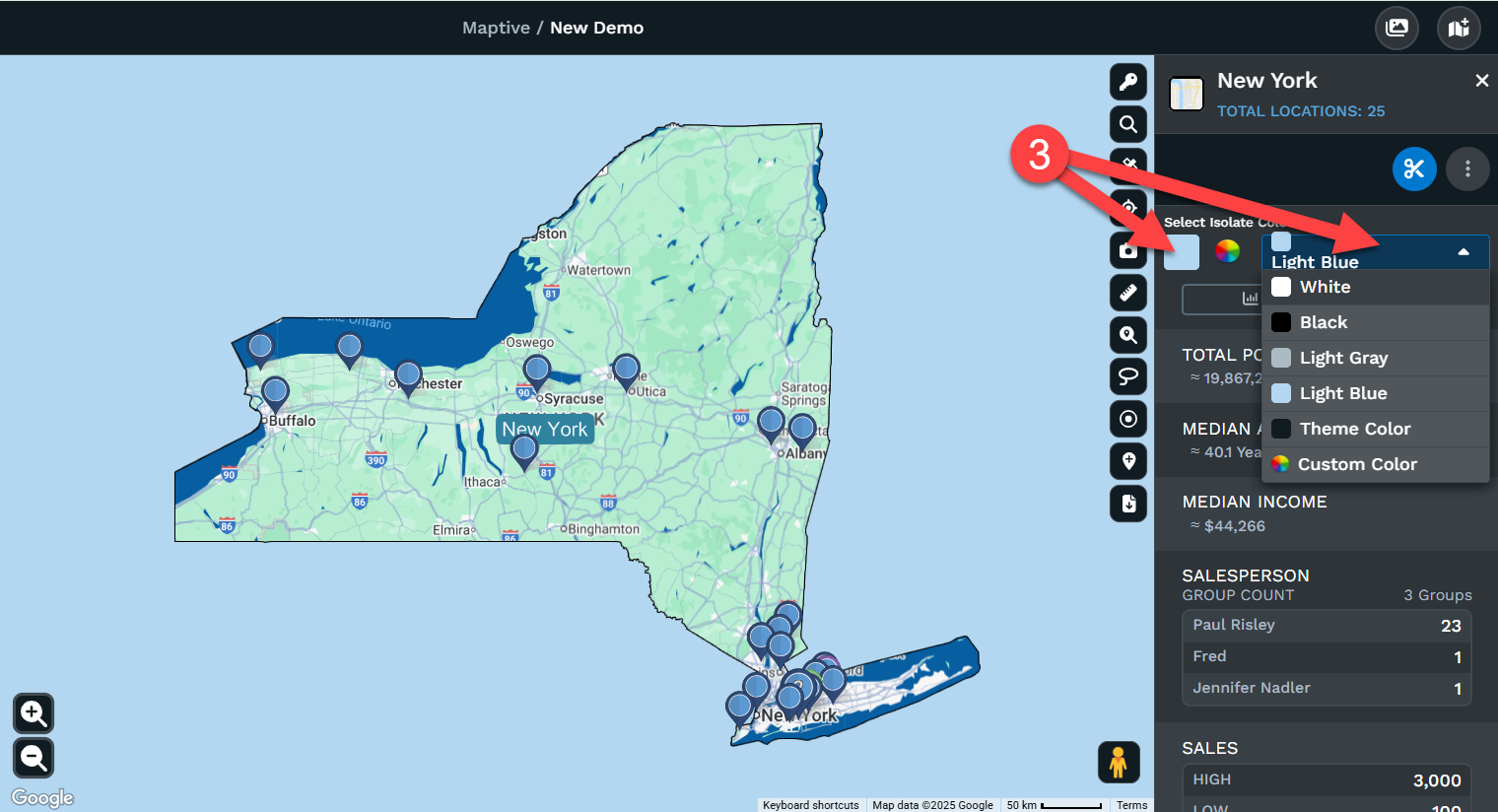
Step 3: Choose a color of the background. You can choose from a default list or a custom color
Remove Isolate boundary
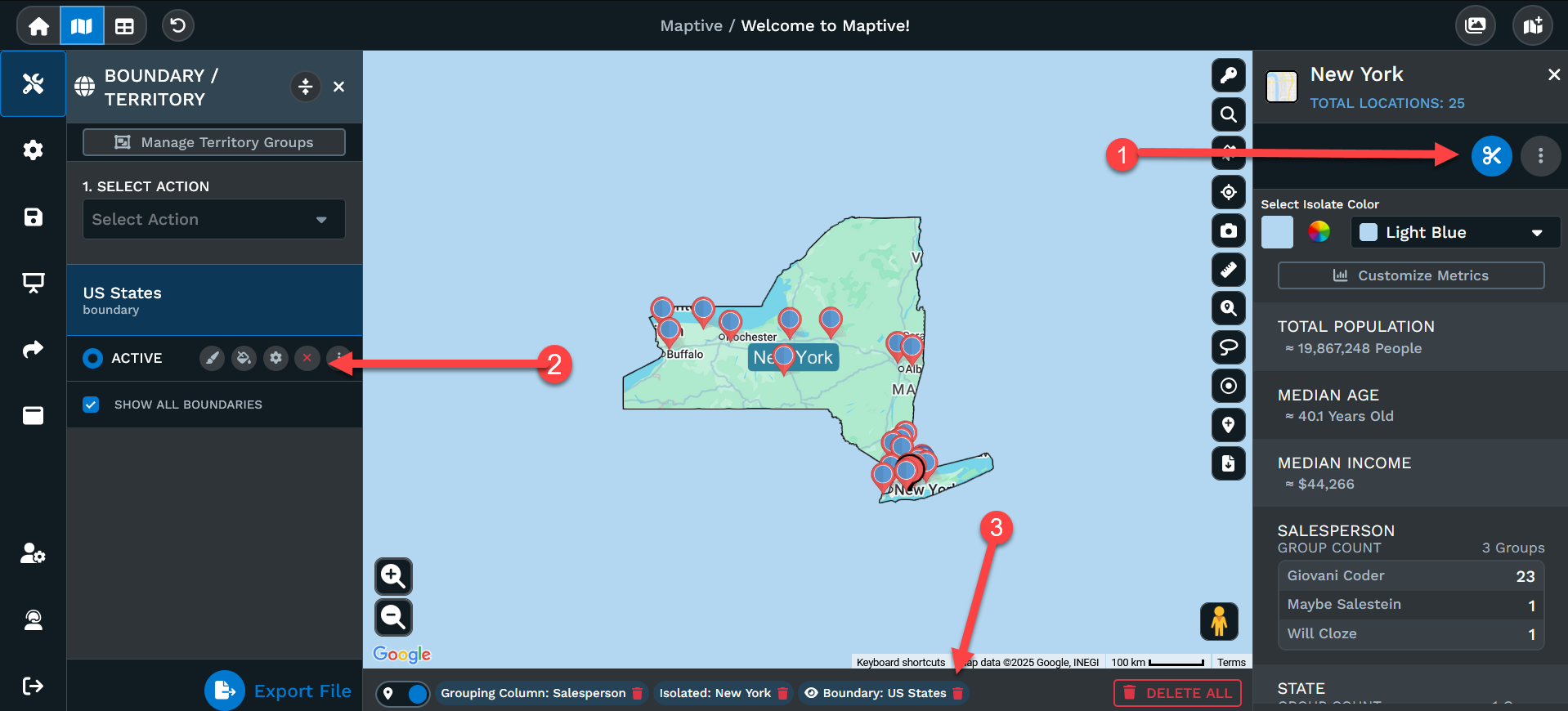
There are several ways you can remove the isolated boundary or territory.
1: Click on the isolated boundary or territory, then click on the isolation tool again to remove it.
2: You can delete/remove the boundaries/territories from the map.
3: You can click on the garbage can where the boundaries/territories are listed at the bottom of the map.
Isolate multiple boundaries
The Isolate tool allows you to isolate one boundary or territory at a time. If you need to show multiple boundaries such as two or more states you would first need to create a territory using the states you want to isolate.