
MaptiveIQ - How to Layer Your Maps
In this tutorial we will show you how to layer multiple maps.
Step 1: Create the maps you'll want to layer
Step 2: Go into any map

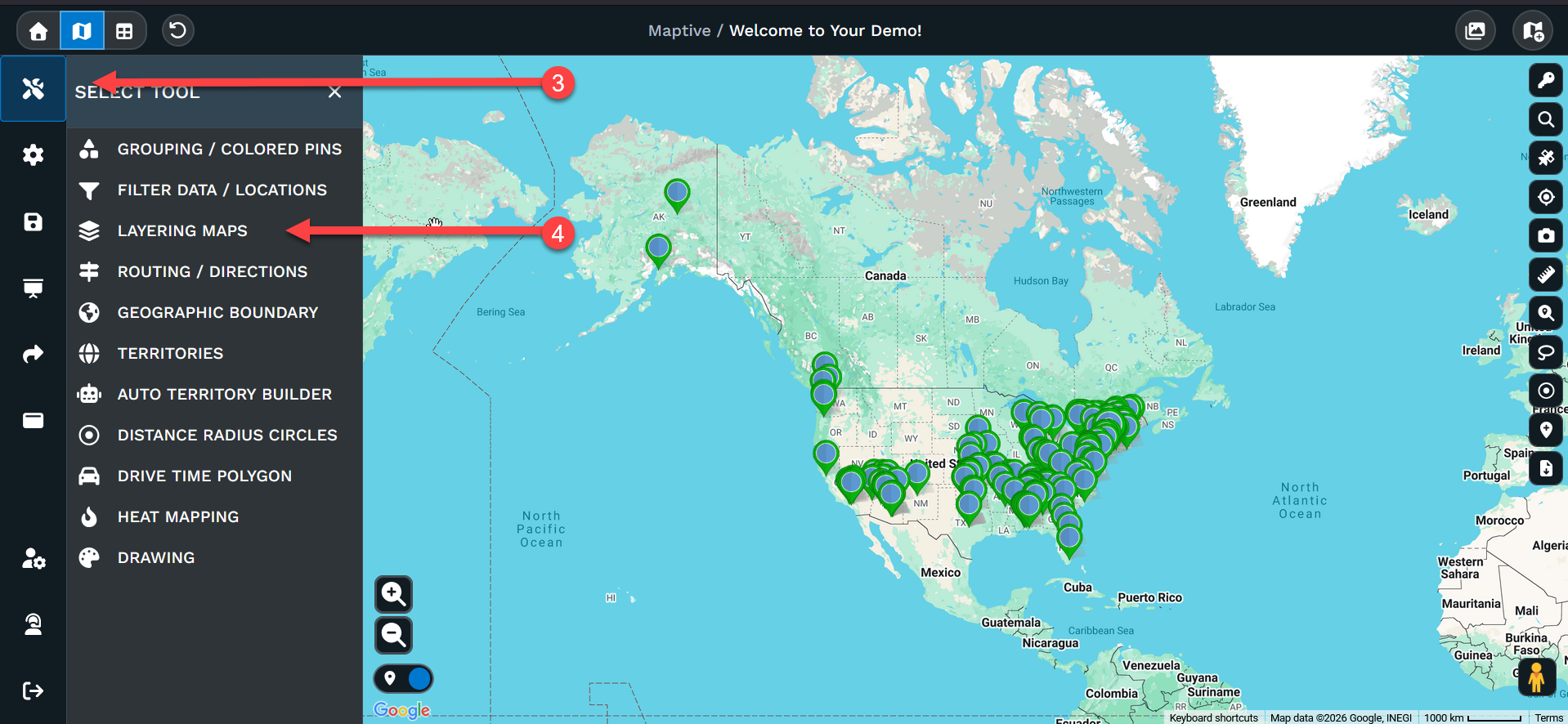
Step 3: Click on the tool box on the left side of your map
Step 4: Click on Layering Maps
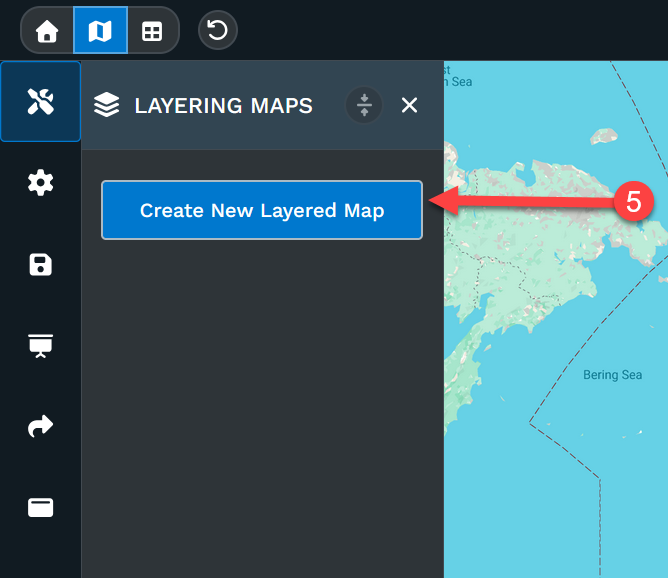
Step 5: Click Create New Layered Map
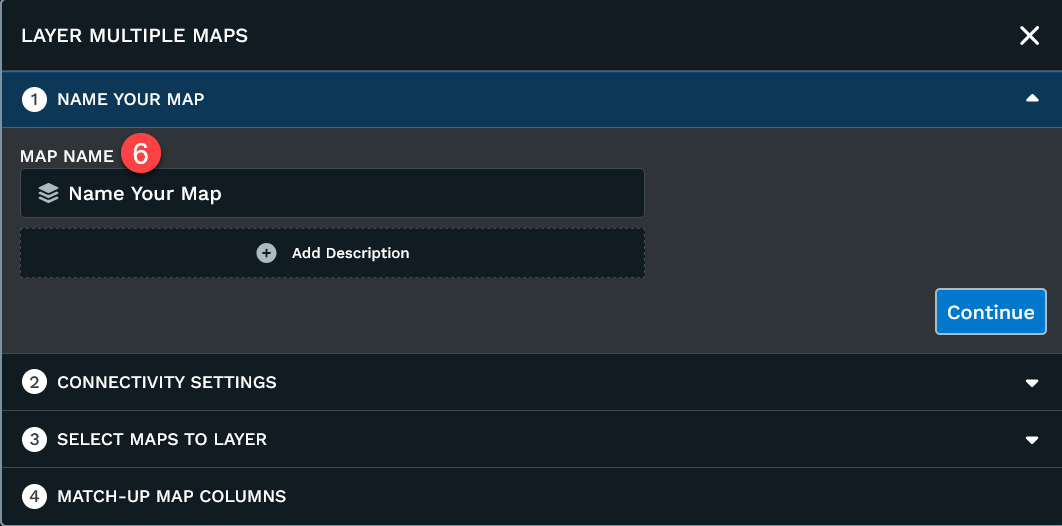
Step 6: Name your map and hit continue
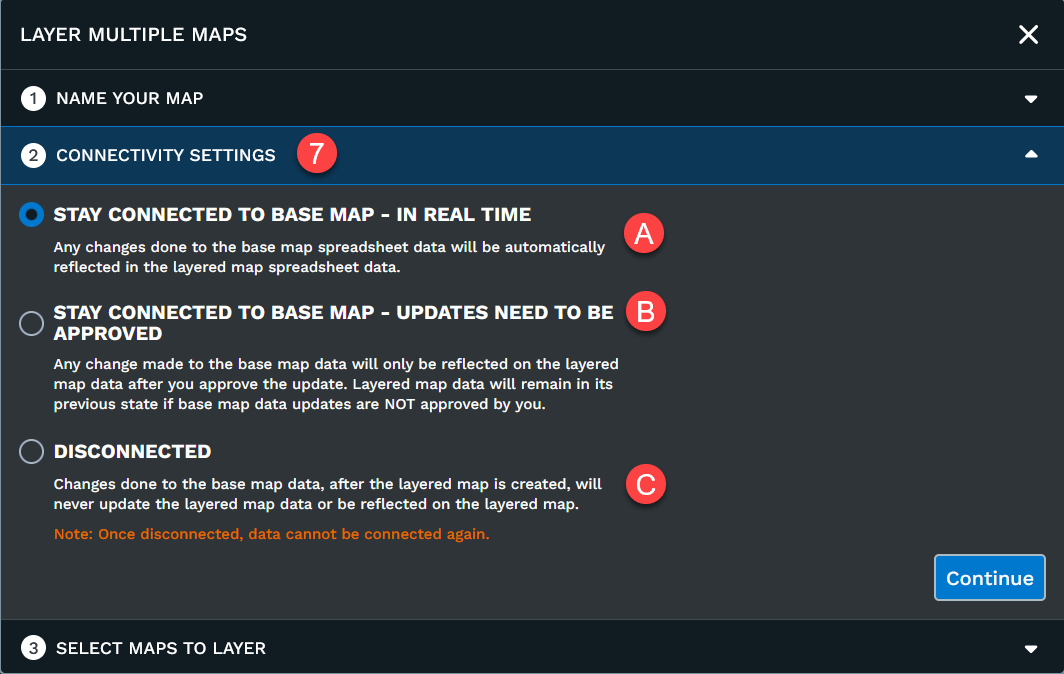
Step 7: Choose how your layered map stays connected to the individual maps you're layering.
Option A: Stay Connected to Base Map - In Real Time: means any changes to the base map spreadsheets will automatically be reflected on the layered map.
Option B: Stay Connected to Base Map - Updated Need To Be Approved: means any changes to the base map spreadsheets will need your approval before they are reflected in the layered map. You will go to the layered map to approve the changes.
Option C: Disconnected: changes to the base map data after the layered map has been created will never update the layered map data or be reflected on the layered map.
Click continue
Step 8: Select the maps you want to layer together from your created map list.
Option A: Select your first map
Option B: Select your second map
Option C: You can select as many maps as you wish up to the maximum number of locations allowed on a single map. Layering combines the data so the number of locations in each map is added together when layering.
Click continue

Final Step: The program compares the columns of data from all the maps you're layering together. It will do it's best to match like columns. It's always a good idea to double check it has matched things correctly. (please note: the data below is simply an example of columns you could have, your column headers should always make sense for your data.) You can use the pull down menus for each match to make changes should you need.
When you are ready, click Layer Maps Now

Your new map will open and you're ready to work in your new layered map. Remember all data edits should happen on the individual maps.