MaptiveIQ - Location Finder Tool
The location finder allows you to find the closest locations to any address you type in or using your current location. You can use this as a store locator or to get a quick snapshot of what is near a certain location. To active the tool follow these steps
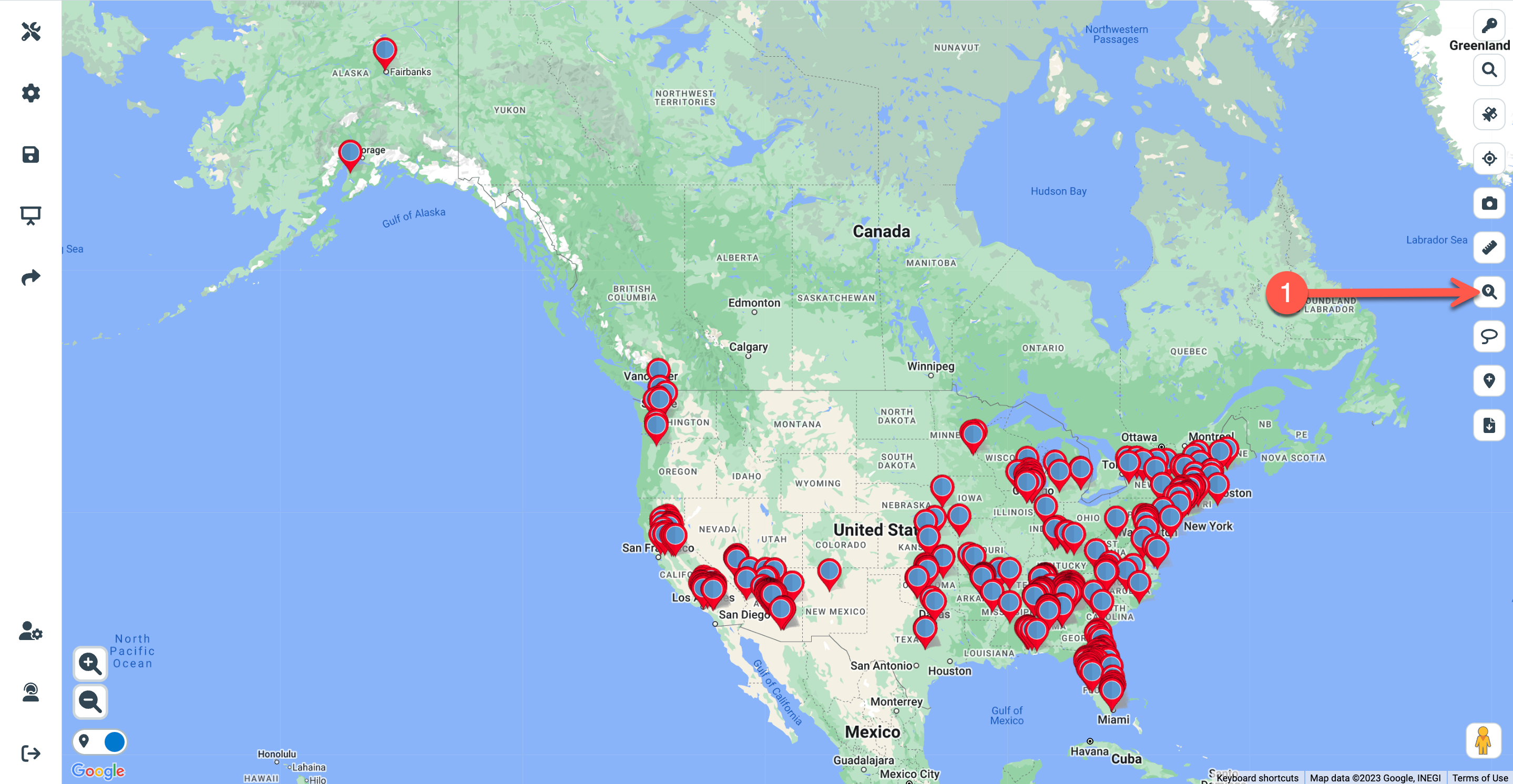
Step 1: Click on the Location Finder icon on the right side of your map.
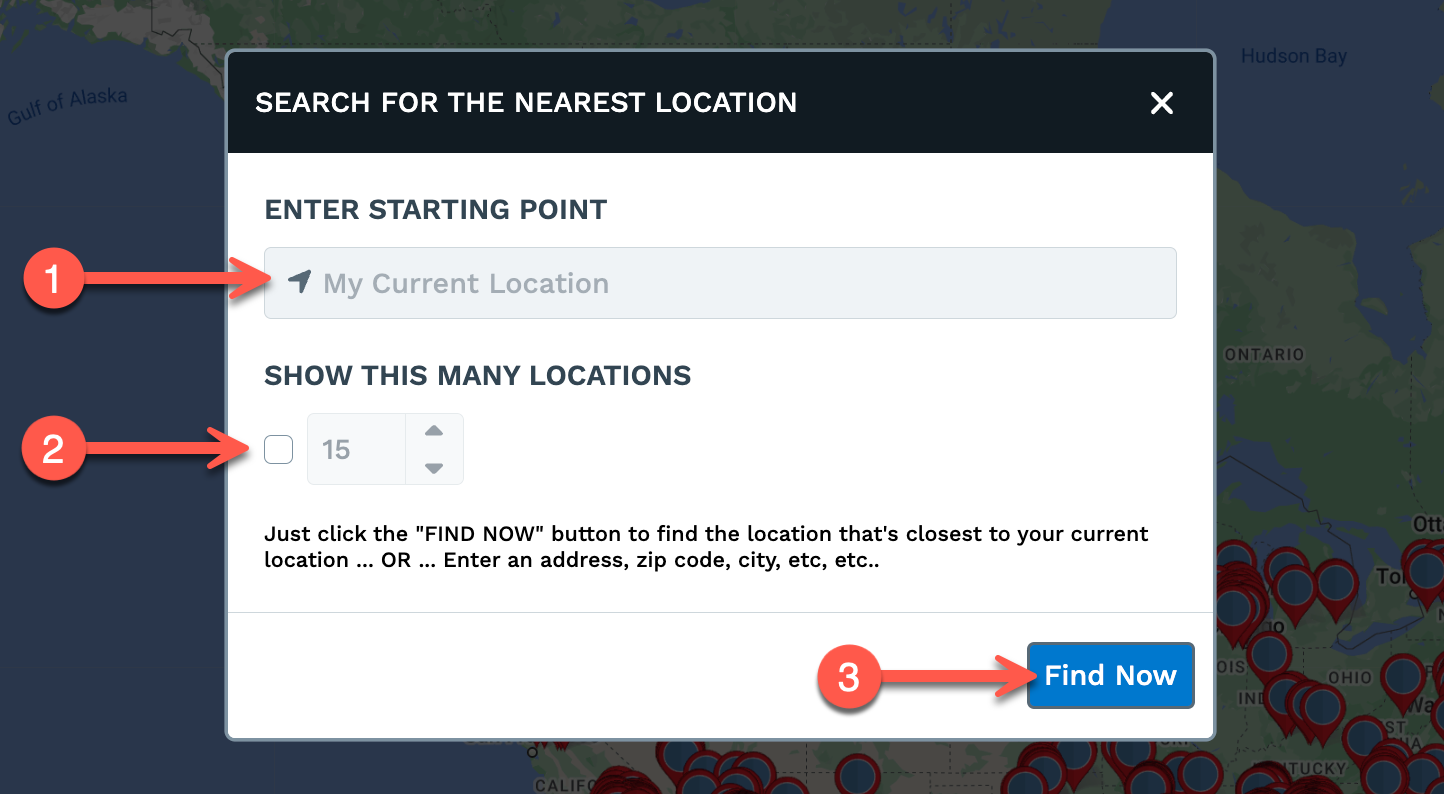
Step 2: Enter a starting point or leave it blank to default to your current location.
Step 3: Check the box and select the number of locations you want to see in the results
Step 4: Click the Find Now button to see the nearest locations.
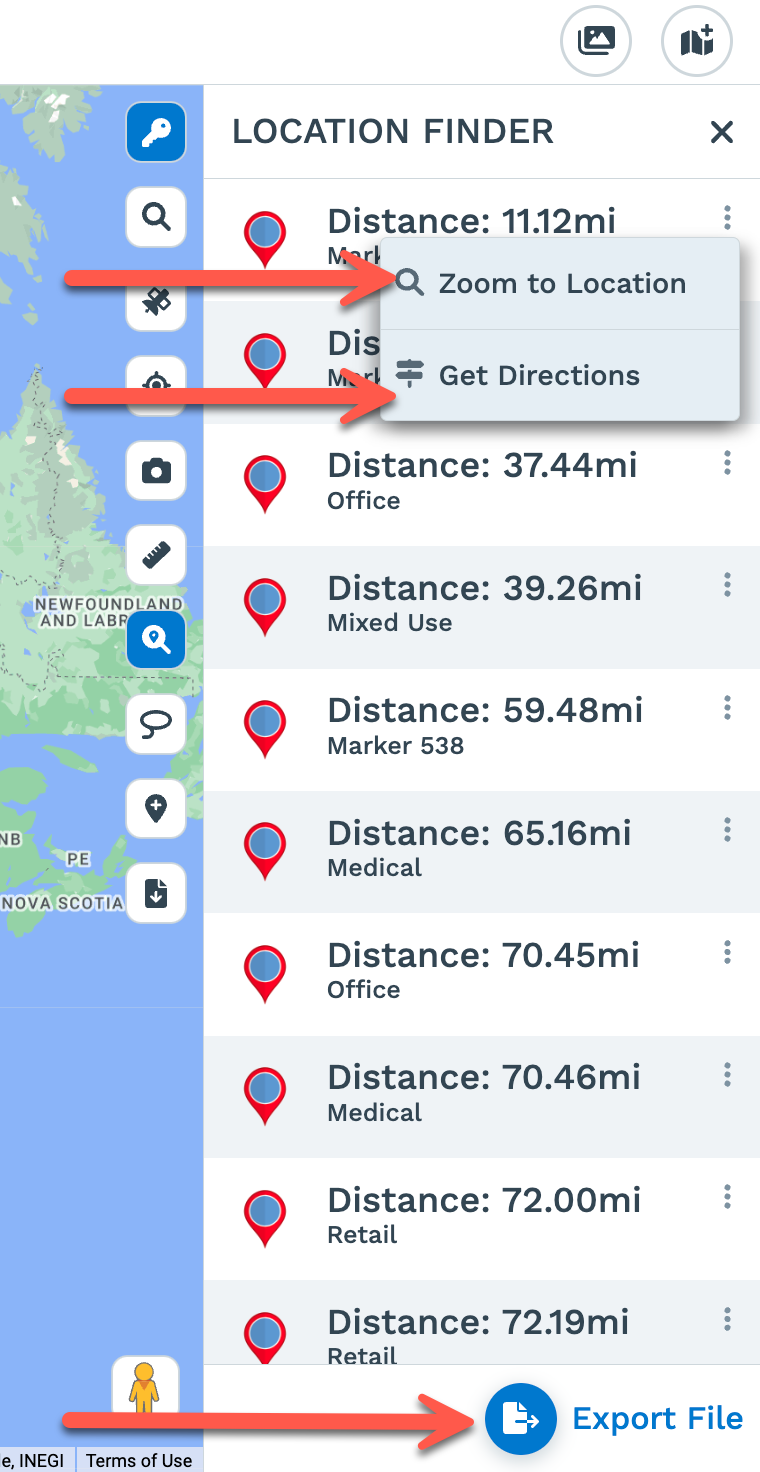
Step 5: After you click the Find Now button, the location you entered will appear as a Green pin, and the number of locations you choose that are nearest to you or to the address you entered will appear in a list on the right side of your map.
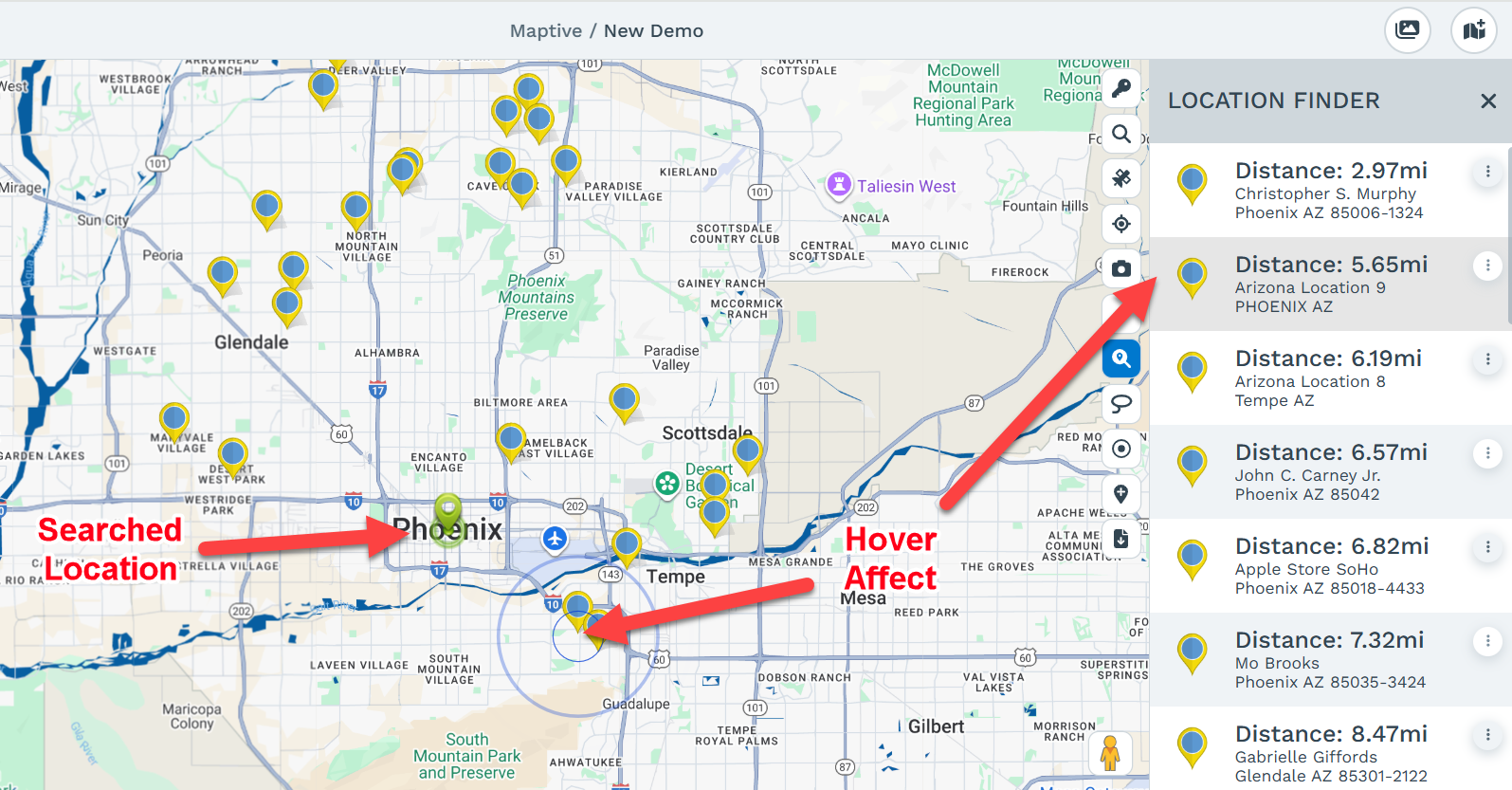
Step 6: From this location list, you can:
a. Zoom the maps to the location .
b. See turn-by-turn navigation using the Routing/Directions tool. <LINK>
c. Export the data as a .xlsx, .tsv, or .csv file, or copy data to the clipboard.
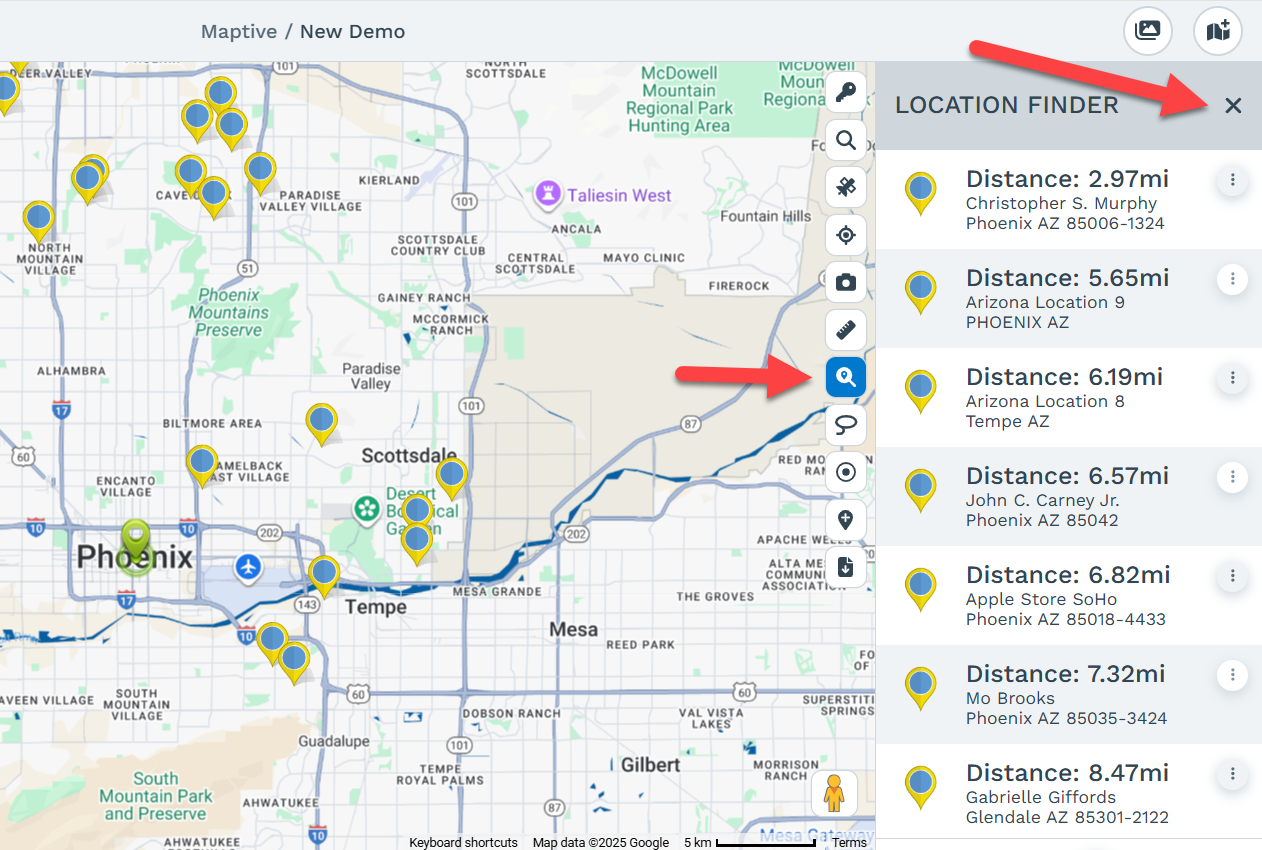
Turn off the location finder
To deactivate the location finder you can click the location finder icon again or click the X in the right side panel