MaptiveIQ - Showing Your Current Location on a Map
Showing Your Current Location on the Map Tutorial:
Whether you want to find out where you're currently located or you want to focus your map on your or your user's current location, 'Show My Location' is the way to do it.
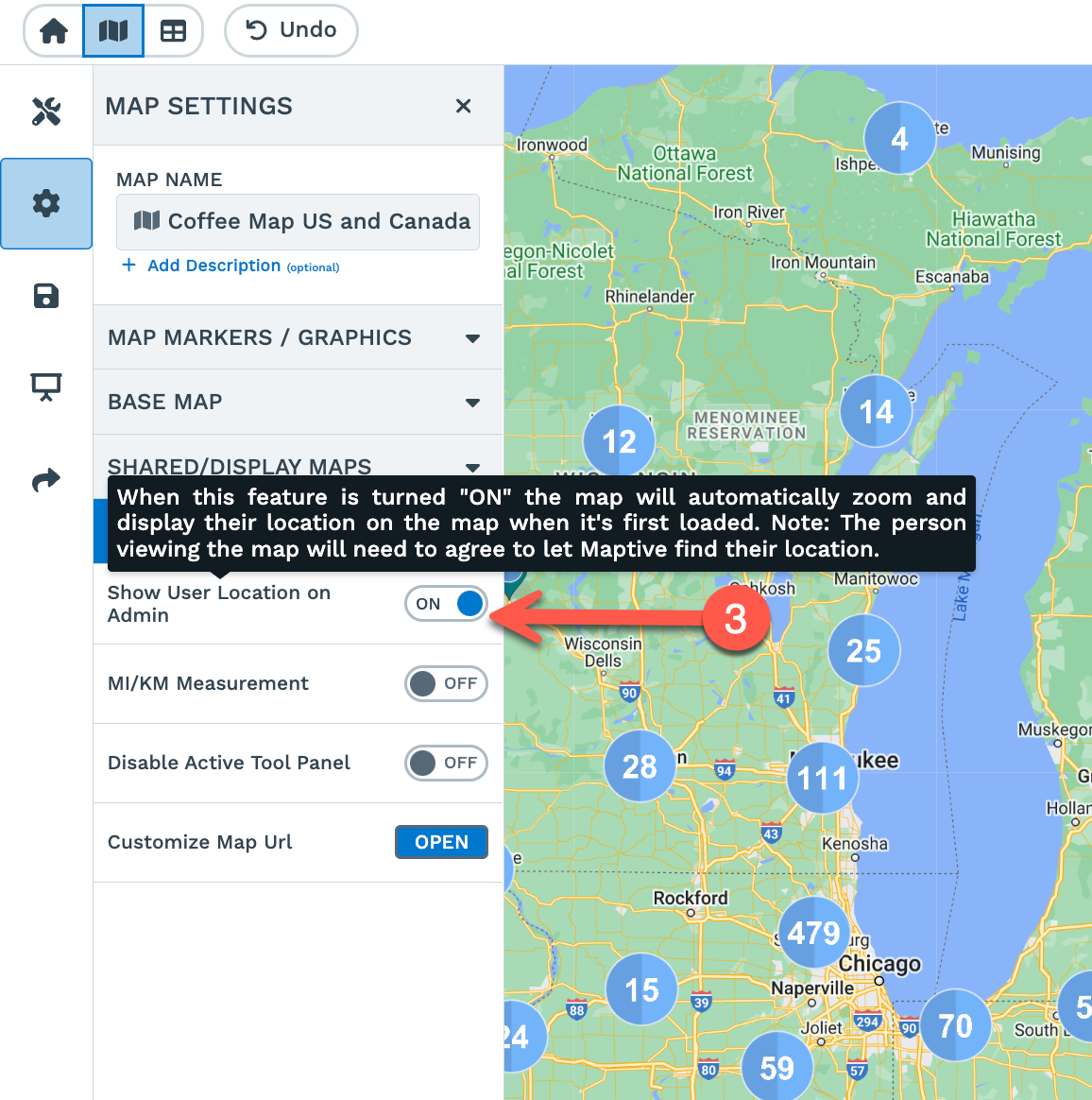
To turn 'Show My Location' ON permanently on the Admin Map, follow these steps:
Step 1: Open Map Settings by clicking on the gear icon on the upper left-hand side of your map.
Step 2: Click 'Other Settings' to open the drop-down menu.

Step 3: Toggle the 'Show User Location on Admin' option to the "On" position.
To turn 'Show My Location' ON permanently on your Shared Maps, follow these steps:
Step 1: Open Map Settings by clicking on the gear icon on the upper left-hand side of your map.
Step 2: Click 'Shared Maps/Presentational Maps' and scroll to the bottom.
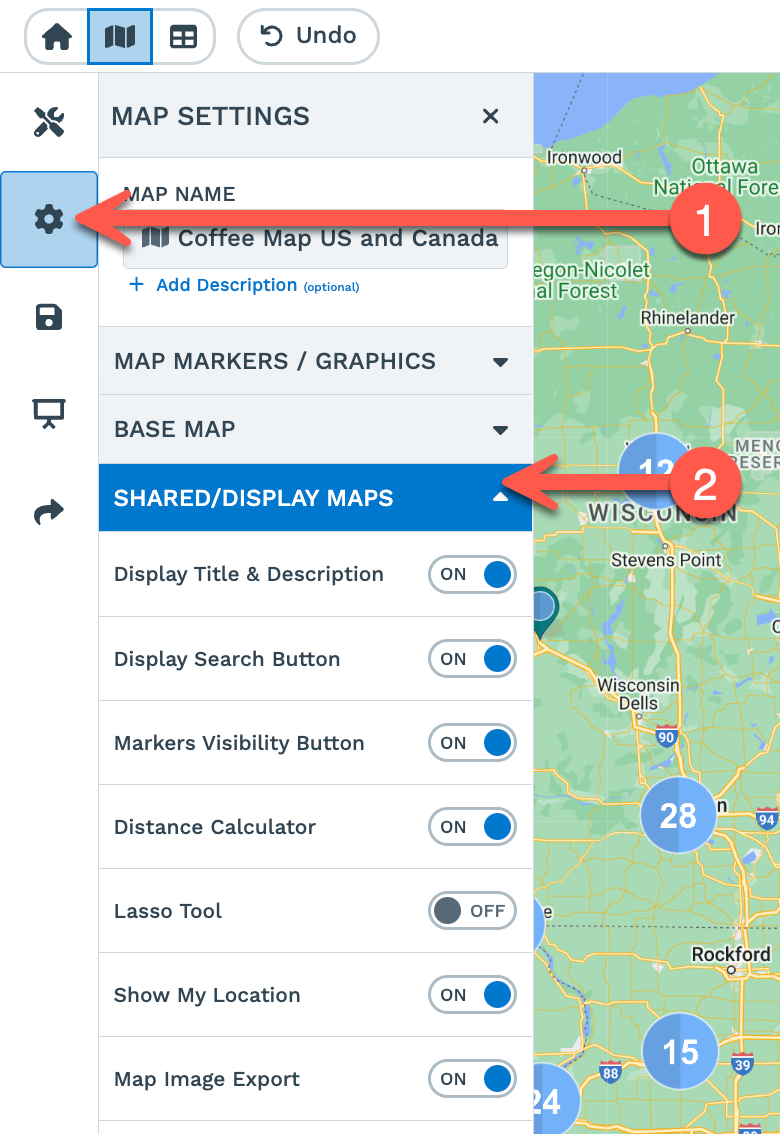
Step 3: Toggle the 'Show My Location Default' option to the "On" position, and your map viewers will be asked to share their location, and the map will automatically focus on their location.

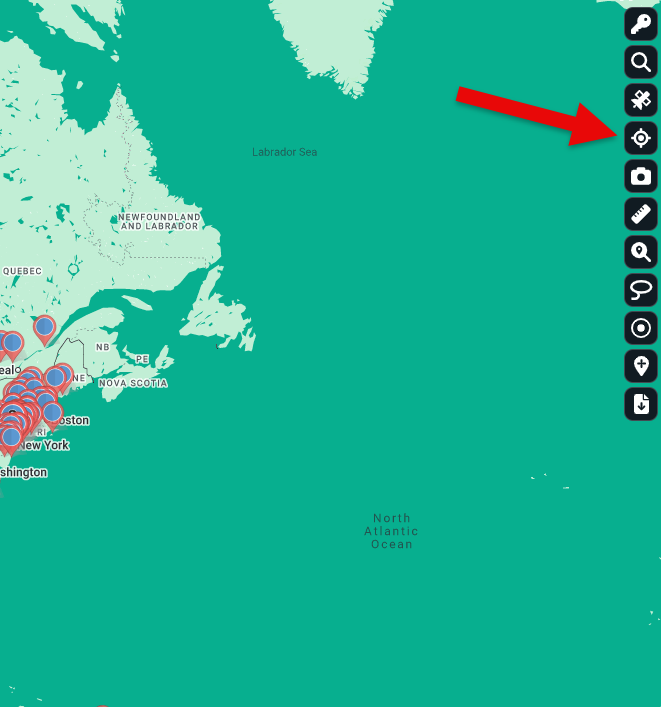
Forget where you are and need a reminder? We gave you a button for that!
Step 1: Look for the 'My Location' icon on the right-hand side of your Map screen.
Step 2: Click it! Maptive does the rest!
Note: Users need to 'Allow' Maptive software to detect their location when prompted on screen, or you might need to update your browser settings to use this feature.