MaptiveIQ - How to Access Your Maps and Map Views
Loading Maps & Map Views Tutorial:
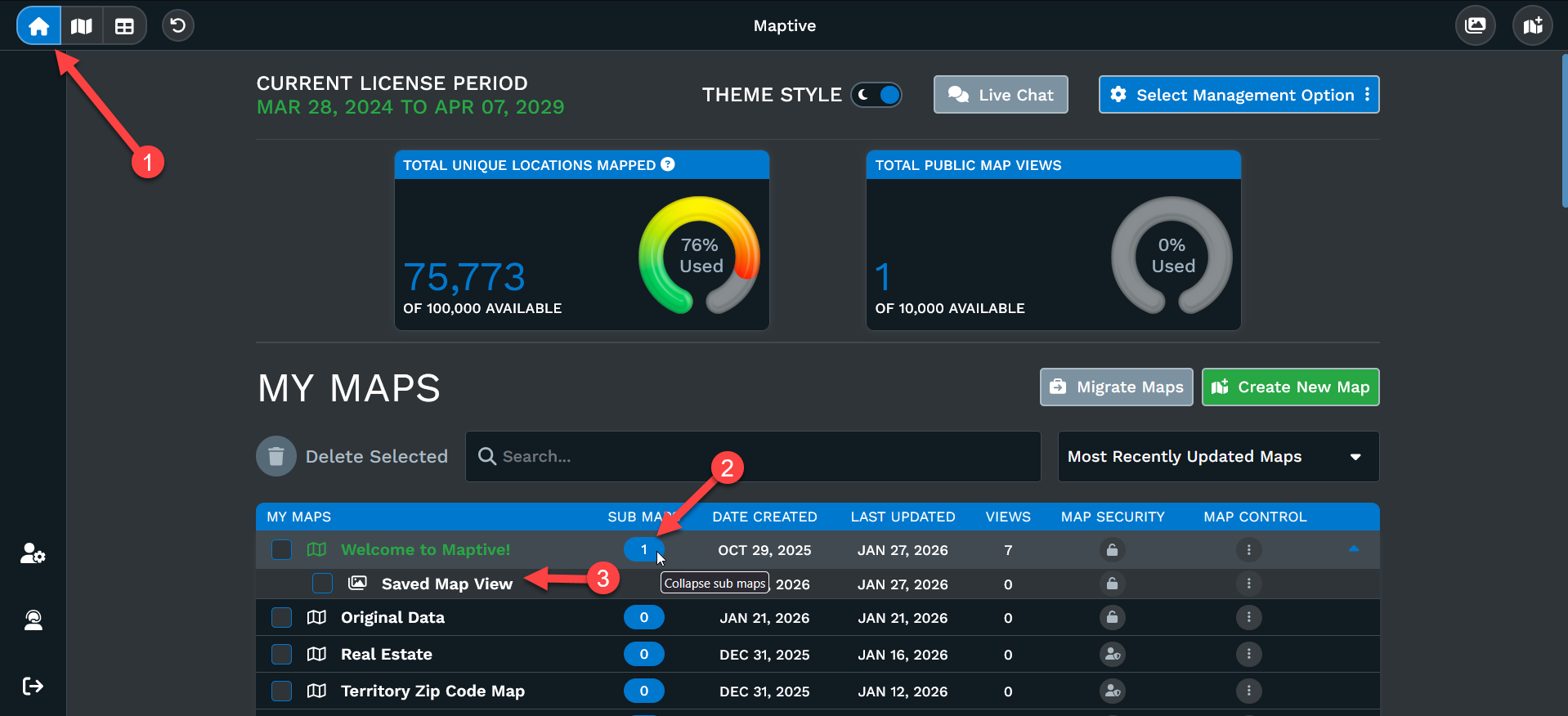
Accessing your previously created maps and snapshots is incredibly easy. Just follow the steps outlined below:
Step 1: You can find your maps and saved map views from your home screen on the top left side of your screen.
Step 2: You can view the list of your maps and snapshots (saved map views) under 'My Maps'.
Step 3: Choose a map or map view to edit or view. Simply click on the name of the map or map view to open that map.
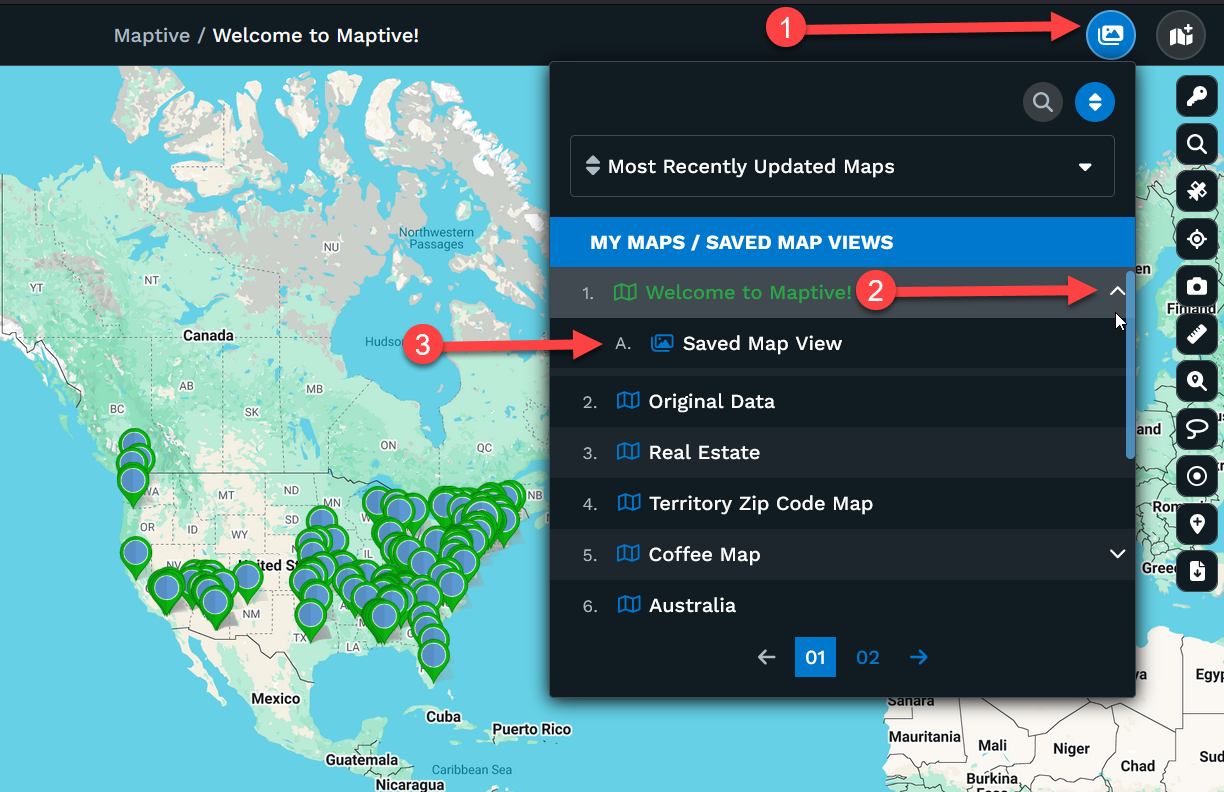
How to access other maps when viewing or editing a map:
From your map screen you can also access your other created maps.
Step 1: Click the button on the top right, to the left of the create new map button.
Step 2: If you're looking for a saved map view click on the arrow to open the folder.
Step 3: Click on the name of the map or map view you want to open.