MaptiveIQ - Add a Marker to your Map
Adding a map marker to your map.
Adding a marker to your map, also adds a line of data to your data in the data tab.
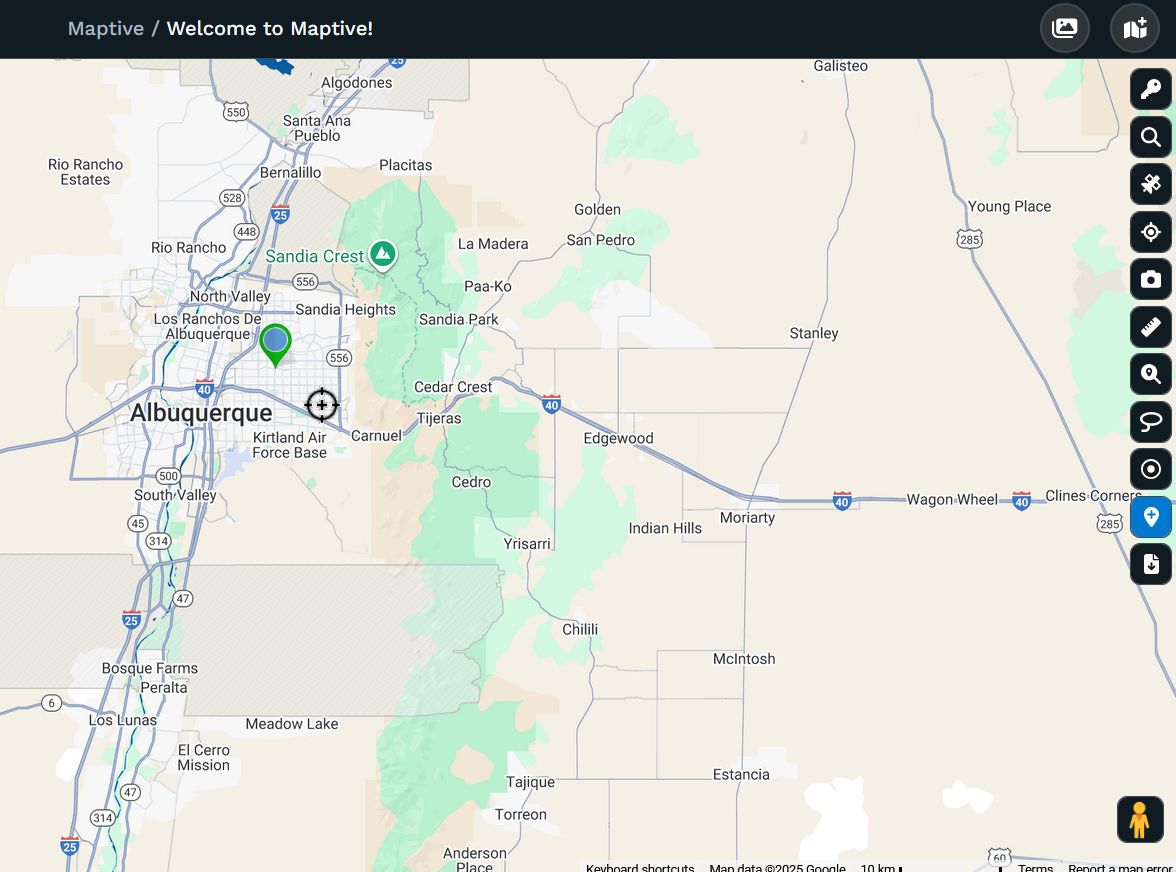
Step 1: Click on the Add Marker icon on the right-hand side of your map.

Step 2: Once you click the icon, you will see a dialog box shown below with two choices.

Step 3: Select the way you would like to add your marker.
A: Input Address Information (Address, City, Latitude, etc) will open a dialog box showing all of the columns in your data. See below for an example:

Once you fill in all of the information you have for the Marker, you can 'Add Another Location' if you have more than one location marker to add. The program will clear the cells, but it will remember what you entered. When you add your last location, click Map Now and all of the locations you entered will be geocodes and added to both your map and your data.
B. The other option, is Place a Marker on the Map. Doing this will turn your marker into the bullseye and you can drop the marker where ever you wish. When you drop the marker the address information of where it was dropped will be filled in on your data provided you have columns for each.