MaptiveIQ - Customizing Your Base Map
How to customize your base map:
Selecting a new map style for your Maptive map is simple. You can also select from different map themes or choose specific color themes to show/highlight or hide highways, roads, points of interest, etc. Just follow the steps outlined below:
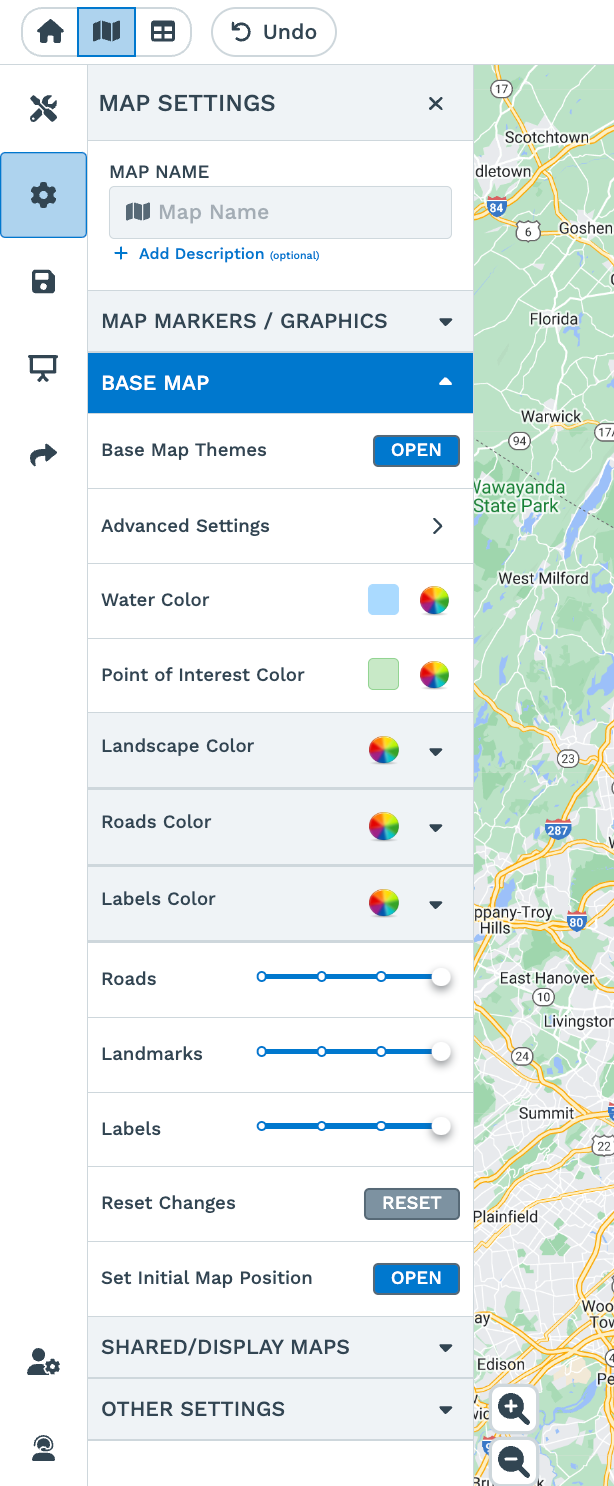
Step 1: Open your map and then open the 'Map Settings' window by clicking on the gear wheel icon in your map's upper left-hand corner.
Step 2: Open the 'Base Map' options drop-down.

Here, in the Base Map settings, you can customize your map themes and the visibility of highways, highway labels, roads, road labels, landscape colors, and more.
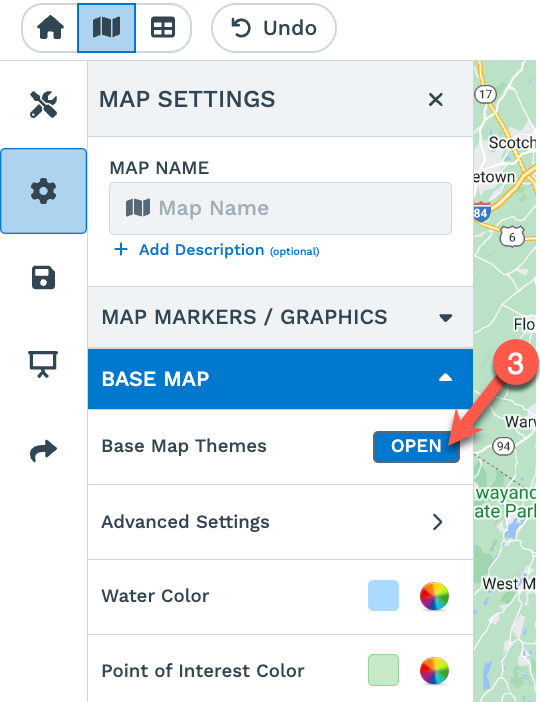
Step 3: To select a Base Map Theme of your choosing, click the 'Base Map Theme' Open button:
You will see the following map styles to choose from:
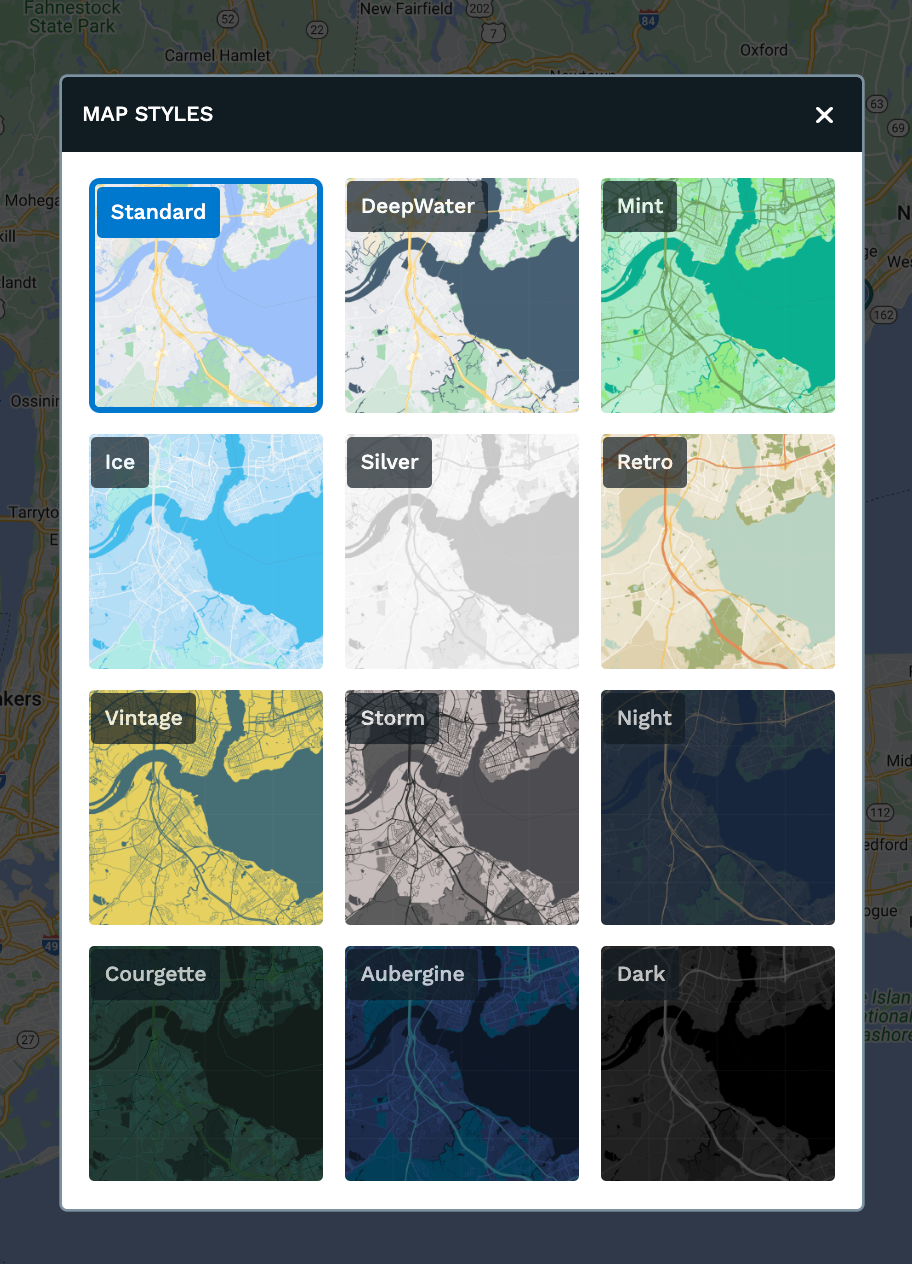
Step 4: Hover over and click on a map style of your choosing.
Step 5: You can have more control over Map themes with the option of choosing specific color themes for landscapes, roads, water, labels, landmarks, and points of interest.
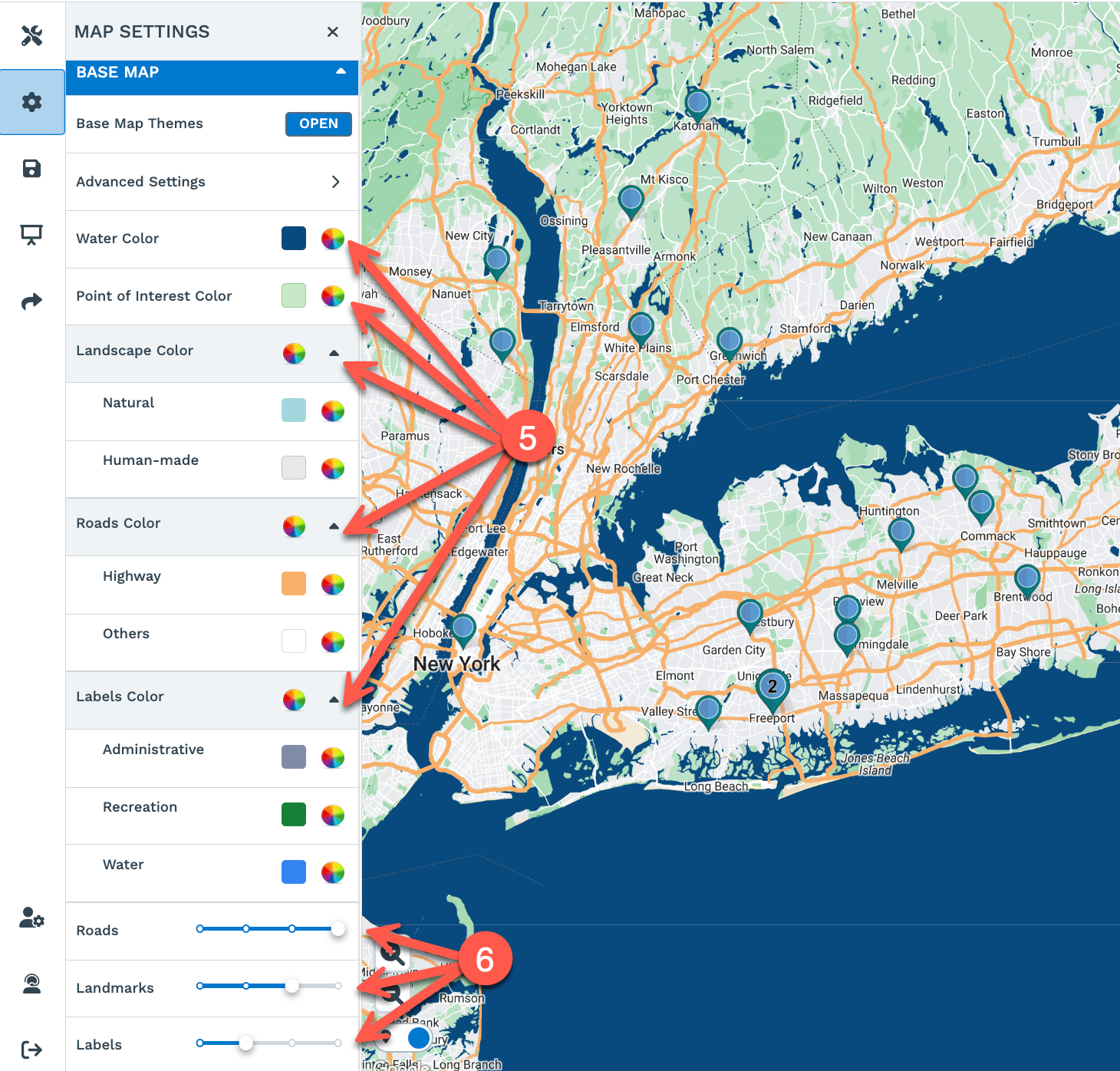
Step 6: You can also set up how detailed or concentrated you want your map to show the roads, landmarks, and other labels.
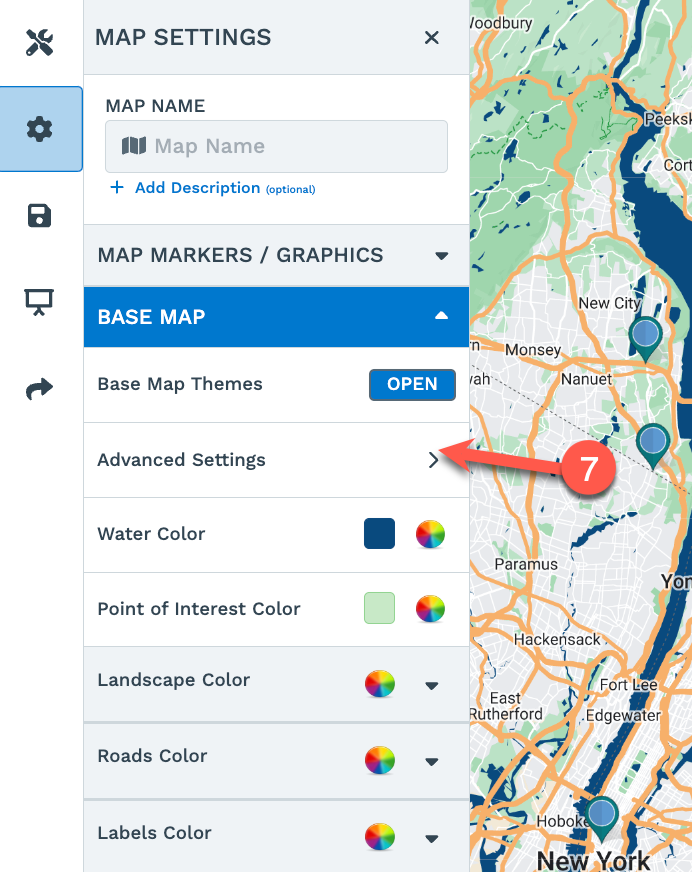
Step 7: For more detailed customizations, you can click on Advanced Settings for a range of options to personalize your Maps.
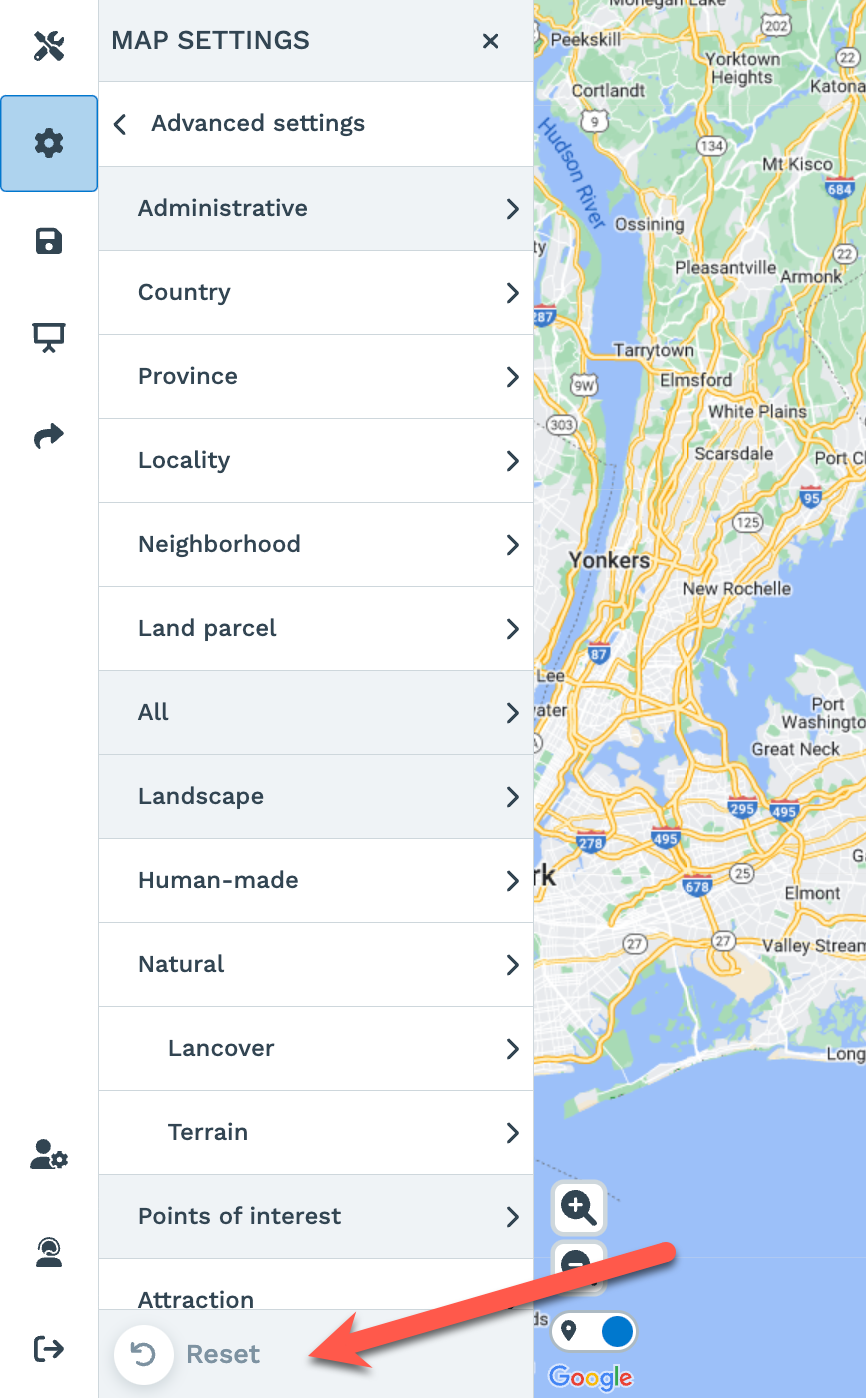
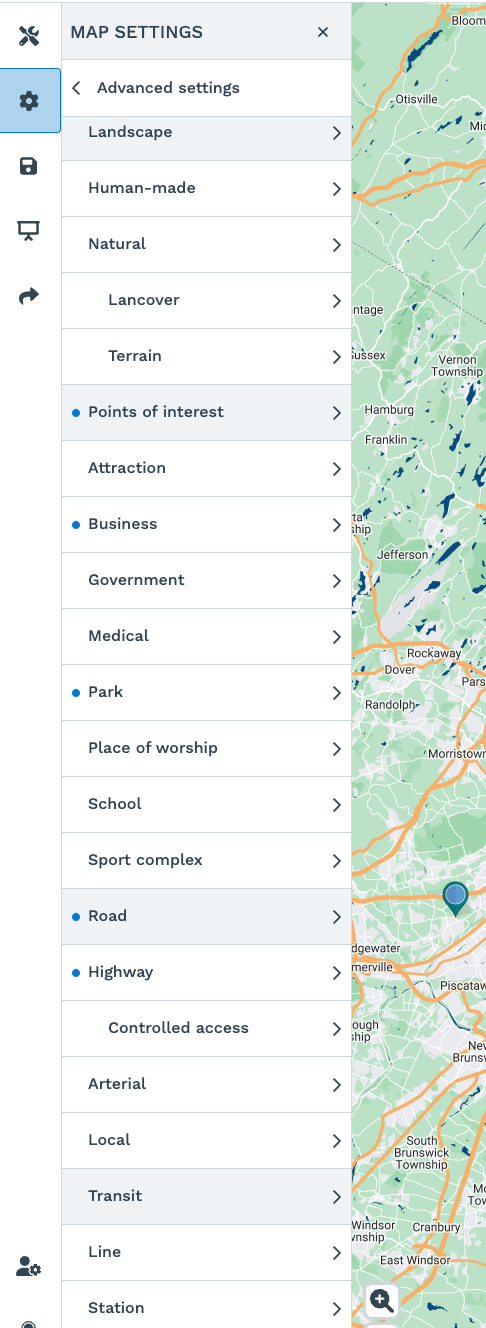
Below are some of the options that you can see under Advanced Settings:
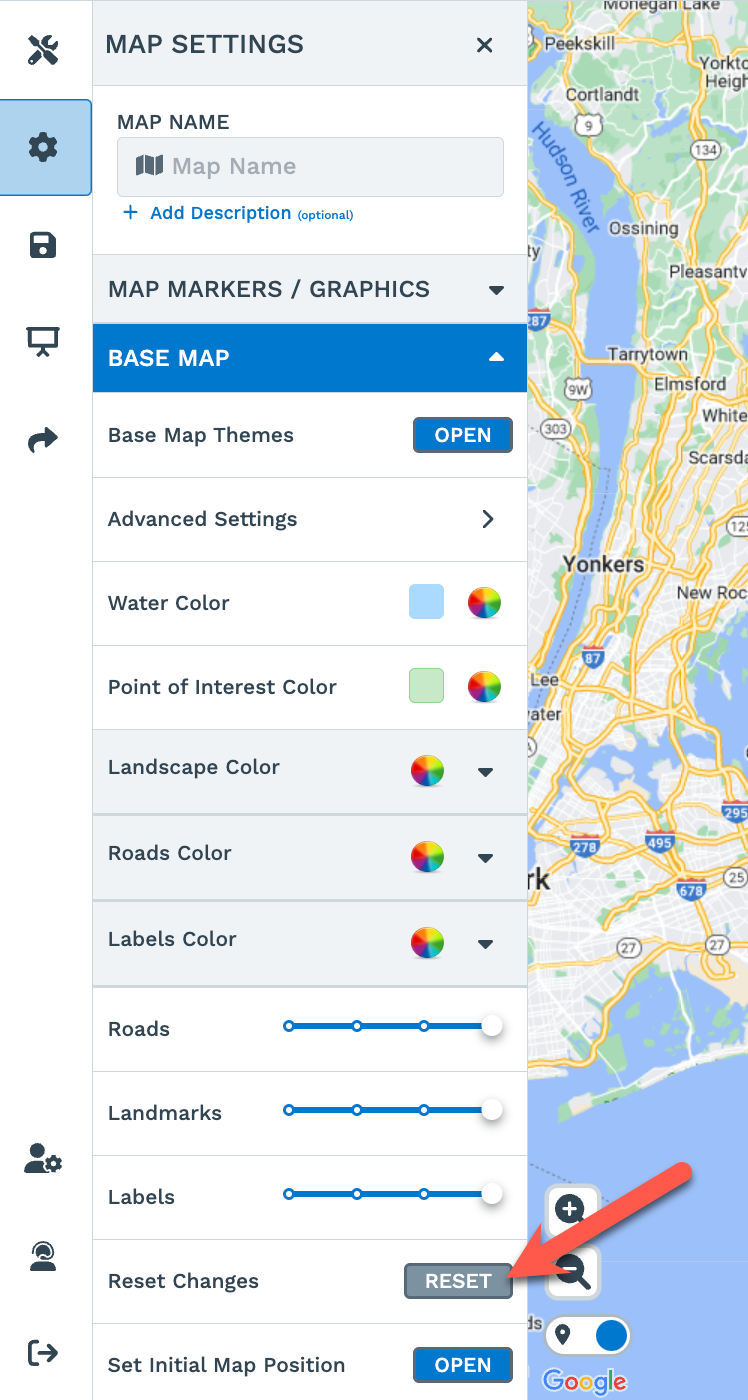
If you need to reset all your map settings, you can either click on the Reset button either from the Advanced Settings option or from the main Base Map menu.